Seating Chart Maker
Paste your names, pick rows, pairs, groups or tables, press Shuffle seats, then drag or tap to fix the last few. Print it, save it as a PNG or show it on the board; nothing is uploaded.
24 people · 24 seats
Sample class (24 made-up names)
Keyboard: Tab to a seat, Enter or Space to select it and again on another seat to swap, P pins, Delete unseats, Esc clears.
Rules and weekly rotation
Rules apply to every shuffle and are saved with the class. Pin a seat from its action bar (or press P on it) to keep its occupant.
Keep apart
These two never sit next to each other (side by side, same desk, same table).
Pick two different names, then Add pair.
Keep together
These two always sit next to each other.
Pick two different names, then Add pair.
Front row
These names always get a seat in the first row.
Weekly rotation
New week shuffles again while steering away from everyone’s past neighbours in the saved arrangements of this class (last week’s pairs first), records the new one (the last 12 are kept) and shows the mix-up meter.
Re-seat rhythm
Save or open a class to choose how often it is re-seated (every 3 weeks by default); due classes show above Saved classes.
Saved classes and events
Saves the names, layout, rules, pinned seats and the current arrangement in this browser only (up to 20).
Nothing saved yet. Save this chart to reuse it next week and to turn on New week.
Nothing leaves your device. The chart is built in this browser; names, class names and event names are kept in local storage only when you press Save, and are never sent to a server, put in the page URL or sent to analytics. A view link you choose to share carries the names after the # sign, which browsers never send to a server.
How to make a seating chart
Paste names, pick a layout, press Shuffle seats: three steps, no sign-up, and a sample class is already seated when the page opens so you can try the swaps first.
- Paste the names in the box, one per line (a column copied from a spreadsheet works), or pick a saved class or a list from the random team generator under Load saved list. The counter shows how many people you have and flags duplicates.
- Pick a layout and its size: Rows (columns × rows), Pairs (desks of two), Groups (tables of 4 to 6) or U-shape for a class; Round tables (6 to 12 seats each) or Long tables for an event, where the number of tables comes from the guest count. Under Rules, add keep-apart pairs, keep-together pairs and front-row names.
- Press Shuffle seats. Drag a name onto another seat, or tap one seat and then another, to swap; pin a seat so later shuffles keep it. Then Print, Download PNG or Present on the board, and Save the class so New week gives a fresh chart next time.
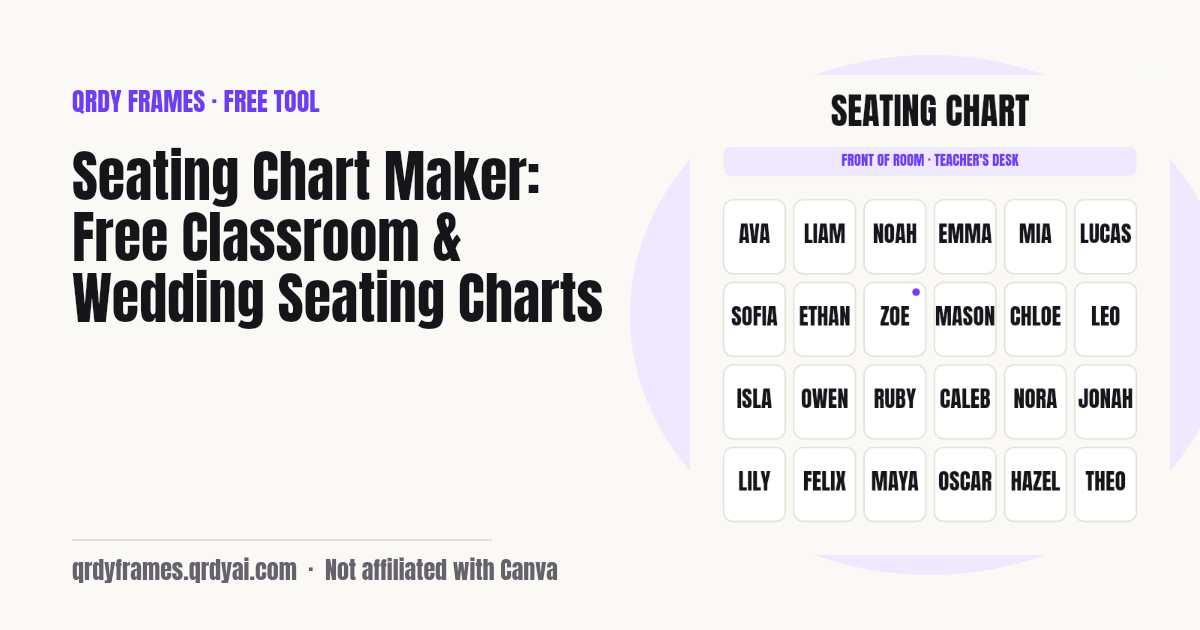
Classroom seating chart ideas
A classroom seating chart works best when the layout matches the lesson: rows for tests, pairs for partner work, groups of four for projects, a U-shape for discussion. Each is one click here, and the shuffle, the rules and the saved class carry over between them.
- Rows for tests: Single desks in columns and rows, every seat in view of the front; shuffle so friends do not sit side by side.
- Pairs for partner work: Desks of two: the shuffle pairs people up at random, and Keep together puts a buddy pair on one desk.
- Groups of 4 for projects: Tables of four (five or six if you need them), everyone at a table counts as a neighbour, so Keep apart spreads the talkers across tables.
- U-shape for discussion: One horseshoe with the open end at the front, good for debates and read-alouds; the two seats nearest the front count as the front row.
Picking who answers next once everyone is seated? Add a spin wheel to your slides with Spin Wheel Maker in Canva. The same class list splits into random groups in the Random Team Generator (its saved lists load here), the Classroom Timer keeps the group work on time, and the Bingo Card Generator makes a game for the last ten minutes.
Random seating chart generator with rules
A random seating chart that still follows your rules: every Shuffle seats draws a fresh arrangement from the browser's cryptographic random generator, then keeps only the ones that meet the rules you set. Keep apart puts two names on seats that are not neighbours (side by side in a row, the same desk, the same table, or next to each other at a long or round table). Keep together does the opposite. Front row puts a name in the first row, and a pinned seat keeps its occupant through every shuffle. The tool tries up to 120 arrangements; if a rule cannot be met it says which one in plain words ("could not satisfy: Sam and Lee are still neighbours") instead of quietly ignoring it.
Weekly rotation makes week two fair as well: save the class, and New week shuffles again while steering away from everyone's past neighbours in the last 12 saved arrangements, last week's pairs first, then shows "0 repeated neighbours" (or how many could not be avoided in a small room) and the mix-up meter. Each saved class keeps its last 12 arrangements.
Re-seat every few weeks without repeats
Give every saved class a rhythm and the tool keeps the routine for you: set Re-seat every to 2, 3 or 4 weeks (3 by default, or Off), and when a class's last arrangement is older than that it shows in a "Due to re-seat" strip at the top of the tool, for example "Period 3 Science · 22 days · New week". One tap opens the class and runs New week, which looks back over the last 12 arrangements, avoids last week's neighbours first, and then shows the mix-up meter: "everyone has sat next to 9 of 23 classmates on average", plus the student with the fewest new neighbours, so you can swap them by hand. Add re-seat reminder downloads a repeating "Re-seat class" event for Google Calendar, Apple Calendar or Outlook, with a link back to this page and no class or student name in it.
When you are out, the chart goes with the sub plan: Share chart, then Copy view link, gives a link that opens a read-only chart on any phone, with the front of the room at the top, a Teacher view flip, a Find a name box that highlights the seat while the sub calls roll, and Print sub sheet, which prints the chart with a blank attendance column. The names are in the link itself, after the # sign, not on our server; share it only with people who should see your class list. Share room setup sends only the layout and its size, so a colleague can open the same room with a sample class and paste their own list.
Wedding and party seating charts
For a wedding or a party, switch to Event: paste the guest list, choose round tables with 6 to 12 seats each or long tables with a set number of seats a side, and the tool works out how many tables you need, numbers them, and can mark table 1 as the head table. Shuffle the guests or seat them by hand with drag or tap, keep the two cousins apart and the couple's friends together, then print the table plan or download it as a PNG for the sign at the door.
What this tool does not do: it is not a venue floor-plan editor. There is no room shape, no dance floor, no table coordinates to drag around, and no RSVP tracking. It gives you a clear table-by-table plan with everyone's full name, which is what most guests and caterers actually need.
Are the names uploaded anywhere?
No: the names stay in your browser. The chart is built and drawn on your device, saved classes and events live in this browser's local storage under one key (qrdy.seating.v1, up to 20 of them), and nothing is sent to a server: not the names, not the class or event name, not even to analytics, which only receive the layout, the number of people as a range and the number of rules. The page URL carries only the mode (?mode=class or ?mode=event); a view link you choose to share carries the chart after the # sign, which browsers never send to a server, and a room link carries no names at all. Clearing site data removes the saved classes; with storage blocked, the page still works but forgets them when you leave, and says so.
Seating chart maker FAQ
Is the seating chart maker free?
Yes, completely free: no account, no sign-up, no watermark on the PNG and no limit on how many charts you make or print. It is one of the free tools made by the team behind Qrdy Frames.
Can I make a random seating chart?
Yes. Paste the names, pick a layout and press Shuffle seats: every seat is drawn at random by the browser's cryptographic random generator. Shuffle again as often as you like, Undo brings the last arrangement back, and pinned seats keep their occupant through every shuffle.
Can I keep two students apart?
Yes. Open Rules, add a Keep apart pair and pick the two names; every shuffle then puts them on seats that are not neighbours. Keep together does the opposite, Front row puts a name in the first row, and the rules are saved with the class. If a rule cannot be met, the tool tells you which one instead of ignoring it.
Can I move seats by hand?
Yes, three ways: drag a name onto another seat with a mouse or a finger, tap (or click) one seat and then another, or move the focus to a seat with Tab and press Enter or Space on two seats. Either seat may be empty. Undo reverts the last swap or shuffle.
Does it work on a phone or smartboard?
Yes. The chart scales to the width of the screen, names shorten on small seats and show in full when you tap them, and swaps work by touch. Present fills the screen with large names and the front of the room at the top; a Teacher view button flips the chart so it matches what you see from the desk. Escape or the Exit button leaves.
Can I make a wedding seating chart?
Yes, for the table plan: switch to Event, choose round tables (6 to 12 seats each) or long tables (seats per side), and the number of tables comes from the guest count, numbered, with an optional head table. Shuffle or seat guests by hand, then print or download the plan. It is not a venue floor-plan editor: no room shape or table positions.
Can I print it or save it as an image?
Yes. Print opens your browser's print dialog with only the chart on the page, full names, no site header or footer; choose Save as PDF there to keep a file. Download PNG draws the chart at print resolution (2,000 pixels wide) and saves seating-chart.png.
Can I save my class for next week?
Yes. Press Save and give the class or event a name; the names, the layout, the rules, the pinned seats and the arrangement are kept in this browser, up to 20 charts with the last 12 arrangements each. Next week, open it and press New week: the shuffle steers away from past neighbours over the last 12 arrangements, last week's first, and tells you how many repeats were left. Lists saved in the random team generator appear in Load saved list too.
Are the names uploaded anywhere?
No. Everything runs in your browser: the names, class names and event names never go to a server, into the page URL or into analytics. Saved charts live only in this browser's local storage (one key, qrdy.seating.v1); clearing site data removes them. The only way names leave your device is a view link you choose to share, where they sit after the # sign, which browsers never send to a server.
Can I share a seating chart with a substitute?
Yes. Press Share chart under the chart, then Copy view link (or Share… on a phone) and paste it into your sub plan or an email. The link opens a read-only chart that is easy to read on a phone: the front of the room at the top, a Teacher view flip, a Find a name box for calling roll and Print sub sheet, which adds a blank attendance column. The names are in the link itself, after the # sign, never on a server, so share it only with people who should see your class list. Share room setup sends the layout without any names.
How often should I change my seating chart?
Every 2 to 4 weeks is common: often enough that students work with new classmates, long enough to learn names and settle in. Set Re-seat every to 2, 3 or 4 weeks on a saved class (3 by default); when a class is due it shows at the top of the tool, one tap runs New week, which avoids repeat neighbours, and Add re-seat reminder puts a repeating "Re-seat class" event in your calendar.
More free tools
Every tool on this site runs in the browser: nothing you paste, type or upload is sent anywhere.
- Random Team Generator split the same class list into fair random teams
- Classroom Timer countdown with quick buttons, presets, chains and a Pomodoro mode
- Bingo Card Generator printable bingo cards from your words, a bingo caller and a winner check
- 2027 Calendar printable 2027 calendar with US holidays and your own events
- Yes or No Wheel spin for a yes or no, with history and best of 3
- Random Letter Generator random letters with no repeats, a letter wheel, random words
- Random Color Generator random colours and palettes, a palette from a photo
- Lorem Ipsum Generator dummy text with exact counts and placeholder images
- Password Generator strong passwords, passphrases and PINs
- Bulk QR Code Generator one QR code per row of a class list or sheet
- Christmas Ornament Photo Maker
- Circle Crop Image
- Heart Photo Frame
- All free tools
About this site
Qrdy Frames previews custom photo frames for Canva designs; the free tools are a side project of the same team, which also makes Spin Wheel Maker. Not affiliated with Canva.