Classroom Timer
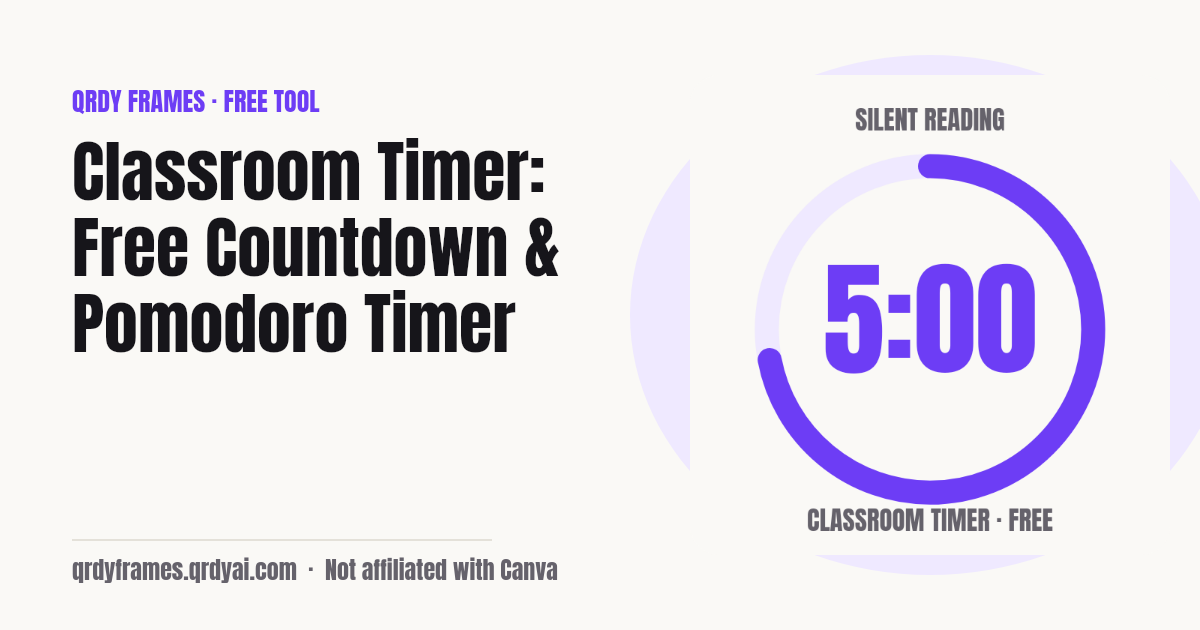
A free countdown timer for the classroom and the projector: quick minute buttons, a circle that drains and turns amber then red, saved presets, chained timers and a Pomodoro mode.
Keys: Space start / pause · R reset · + one minute · F full screen · Esc exit
Focus sessions today: 0
A timer from another tab is on screen. Press Start here once it is idle, or Reset, to switch to the Pomodoro cycle.
Saved presets
Think-pair-share 3 min
Clean-up 5 min
Reading 10 min
Group work 15 min
Morning block
Centers x4
Test with breaks
Save the current timer
5 min · Chime tone
Routines (steps run back to back) are built and shared on the .
Your routines
Morning block
Centers x4
Test with breaks
Build a routine
Steps run back to back with the tone between them, e.g. Morning work 15 min → Centers → Clean-up 5 min. Up to 24 steps, minutes and seconds each.
Centers rotation helper
Every group visits every station; groups move on by one station each round.
Station and group names (optional)
Sound: Chime · Loud
Sound, last length, Pomodoro lengths and presets are kept in this browser only.
Nothing leaves your device. The countdown runs in this browser, activity names, presets and chains are kept in local storage only, and no name you type is ever sent to a server or into analytics. A shared routine travels only after the # in its link, which browsers never send to a server.
How to use the classroom timer
Set the time, press Start, watch the ring: three steps, no sign-up, a 5-minute timer already set when the page opens.
- Set the time: tap a quick button (1, 3, 5, 10, 15 minutes) to set and start at once, or type minutes and seconds and press Start. Add an activity name such as "Silent reading" so the class sees what the time is for.
- Watch the circle: it drains as time passes, turns amber near the end and red in the last ten seconds. Press F or the Full screen button for the projector; Space pauses, + adds a minute, R resets.
- At zero the digits read 0:00, a Time's up message appears and your chosen tone plays. Press Reset or Space to run the same length again, or save the timer as a preset for next lesson.
Classroom timer ideas
A visible timer takes the nagging out of pacing: here are six ways teachers use this page, from a 2-minute transition to a full stations rotation.
- Transitions: A 2-minute timer on the board turns packing up or moving seats into a race against the circle, not against you.
- Think-pair-share: One minute to think, two to talk in pairs, then share: chain the three steps so the bell does the pacing.
- Clean-up: Five minutes, the Bell tone and the activity name on screen; the room is tidy when the ring is empty.
- Tests and quizzes: Set the full length, go full screen, and the amber and red bands give a silent warning without you calling the time.
- Centres and stations: A chain of equal steps, one per rotation, with the tone between them; the next station's name shows under the timer.
- Brain breaks: A 3-minute timer with the Gentle tone for stretching or quiet time, then straight back to the lesson.
Teaching from Canva slides? Spin Wheel Maker puts a clickable spin wheel inside the design itself, so when the timer ends the class watches the next name land on your slide: try Spin Wheel Maker in Canva. Need groups for the activity, a quick yes or no, or a letter for the warm-up? Split the class with the Random Team Generator, spin the Yes or No Wheel or draw one with the Random Letter Generator.
Pomodoro timer
The Pomodoro technique is a focus method: work on one task for 25 minutes, rest for 5, and after 4 of those sessions take a longer 15-minute break. The fixed rhythm removes the decision of when to stop, which is what makes it work for marking, lesson planning, revision and homework.
The Pomodoro tab runs that cycle for you. It shows the current phase (Focus, Short break or Long break) and "Session 2 of 4", plays the end tone between phases and, with Auto-start on (the default), moves to the next phase by itself. All three lengths are editable, so a class can run 15/3/10 while an adult revises on 50/10/20.
A counter of focus sessions completed today sits under the timer and resets at local midnight (or when you press Reset count), so a study afternoon or a revision week has a visible tally without an account.
Looking for the Pomodoro timer directly? /tools/pomodoro-timer opens this page on the Pomodoro tab.
Run your daily routine in one tap
A routine is the block you run every morning, saved once and started with one tap: for example morning work 15 minutes, four centers of 12 minutes with a 1-minute switch, then clean-up 5 minutes. The Routine tab ships with 3 starters (Morning block, Centers x4, Test with breaks) that you can edit or delete, and on your next visit a "Welcome back" card above the timer starts the routine you ran last, with a small Mon–Fri row of the days it ran this week.
The Centers rotation helper builds the steps for you: pick 2 to 8 stations, the minutes per station and a switch time (none, 30 seconds, 1 minute or 2 minutes), optionally name the stations and groups, and it adds "Centers 1 of 4", "Switch", "Centers 2 of 4" and so on. While it runs, an Up next strip shows the next two steps with their lengths, and a Group → Station table moves every group on by one each round, large enough to read from the back of the room in full screen.
Share a routine with a teaching partner, a para or a sub: Share routine makes a link (or a QR code to scan, or a routine card picture for a teacher group) that opens a read-only copy with Use this routine and Make your own routine. The routine lives only in the part of the link after the #, which browsers never send to a server. A follow-along link also carries when the current step ends, so a second screen, a station tablet or a student Chromebook shows the same countdown from its own clock.
Splitting the class into center groups first? Make fair groups with the Random Team Generator or seat them with the Seating Chart Maker.
Chained timers and presets
Chained timers run a lesson plan as one sequence: on the Routine tab build steps such as "Warm-up 5 min → Group work 15 min → Share 5 min" (minutes and seconds per step), press Run routine, and each step starts when the previous one ends, with the end tone between them and "Step 2 of 3 · Group work" plus the next step's name on screen. Skip step jumps ahead when the class is quicker than planned; Restart chain begins again.
Presets are how you reuse all this. Save the current length, activity name and tone under a name ("Reading 10 minutes"), or save a chain, and start it from the Presets tab with one tap next lesson; edit, reorder or delete any of them, including the 7 that come with the page (Think-pair-share 3 min, Clean-up 5 min, Reading 10 min, Group work 15 min, Morning block, Centers x4, Test with breaks). Up to 24 presets and 24 steps per chain, all stored in this browser.
Why this timer stays accurate in the background
The countdown is computed from a target time, not by counting seconds, so a background tab, a dimmed phone or a laptop lid closed for a minute cannot make it drift. When you come back, the display jumps to the true remaining time; if the time ran out while you were away, the Time's up state and the tone fire once on return.
While a timer runs, the page asks the device to keep the screen awake (where the browser allows it) and shows the remaining time in the tab title, so you can see it from another tab. Nothing about the timer leaves the browser: activity names, preset names and chain names are stored locally and never appear in analytics.
Classroom timer FAQ
Is the classroom timer free?
Yes, completely: no account, no sign-up, no limit on how often you use it and no watermark in full screen. It is one of the free tools made by the team behind Qrdy Frames.
Does it work on a projector or smartboard?
Yes. Press F or the Full screen button: the page goes dark with huge digits and a ring sized to the screen, the activity name and step above them, and the controls fade out after three seconds of no input (move the mouse or tap to bring them back). Space pauses and resumes, + adds a minute, Escape exits. On browsers without the Fullscreen API (iPhone Safari) the same view covers the window instead.
Does it keep time if I switch tabs or the screen dims?
Yes. The remaining time is the distance to a target timestamp, never a count of ticks, so a background tab or a dimmed phone cannot slow it down. When the tab is visible again the display jumps to the true time, and if it ran out while hidden the Time's up state and the tone fire once on return. While running, the page also asks the device to keep the screen awake where the browser supports it.
Can I add time while it runs?
Yes. Press + 1 min (or the + key) while the timer is running or paused and the end moves one minute later; the ring grows to match. After the bell, + 1 min gives one more minute ready to resume.
Can I change or turn off the sound?
Yes. Open Sound to choose Chime, Bell, Beep, Gentle, each synthesised in the browser (no audio files), set the volume to Loud, Soft or Off, and press Test to hear it. An optional tick in the last ten seconds is off by default. Browsers only allow sound after a tap, so the first click on the page unlocks it; the end tone then plays on its own, including on iPhone and iPad.
Can I save timers for later?
Yes. On the Presets tab, save the current length, activity name and tone under a name, or save a chain of steps; start any preset with one tap, and edit, reorder or delete them. 7 sensible defaults are included and can be removed. Presets, your last length, the sound and the Pomodoro settings are kept in this browser's local storage (up to 24 presets), not on a server, so they do not follow you to another device.
What is the Pomodoro technique?
A way of working in fixed intervals: 25 minutes of focus, a 5-minute break, and a longer 15-minute break after every 4 focus sessions. The Pomodoro tab runs this cycle, shows the phase and session number, plays the tone between phases, auto-starts the next one if you want, and counts the focus sessions you finish today.
Can I run several timers back to back?
Yes. Build a routine on the Routine tab: up to 24 named steps with their own minutes and seconds, or let the Centers rotation helper make them. Run routine starts them one after another with the tone between steps, shows "Step 2 of 3" with the step name and the next step, and has Skip step and Restart chain buttons. Save the chain as a preset to reuse it.
Can I share my routine with another teacher?
Yes. On the Routine tab (or next to any routine in Presets) press Share routine, then send the link, show a QR code on the board, or download a routine card picture. The other teacher sees the steps and total time and taps Use this routine to add it to their own presets. The routine, step, station and group names live only after the # in the link, which browsers never send to a server, and none of it goes into analytics.
Can students see the timer on their own Chromebooks?
Yes. While a routine runs, copy the follow-along link (or show its QR code) and open it on the Chromebooks, a station tablet or a co-teacher's laptop: each device shows the same step and countdown, counted from its own clock. There is no live connection, so if you pause, skip or add time, share a new link.
Is anything I type saved or uploaded?
Nothing is uploaded. Activity names, preset names and chain steps are kept only in this browser's local storage under one key, and the analytics record only counts and settings such as the length as a range and which tone was chosen, never your text. Clearing site data removes everything. If your browser blocks storage, the timer still works but cannot keep presets or settings, and the page says so.
More free tools
Every tool on this site runs in the browser: nothing you paste, type or upload is sent anywhere.
- Bingo Card Generator printable bingo cards from your words, a bingo caller and a winner check
- Seating Chart Maker classroom seating charts: rows, pairs, groups, random shuffle with rules, weekly rotation
- 2027 Calendar printable 2027 calendar with US holidays, year or month pages, your own school dates
- Random Team Generator split names into fair random teams
- Yes or No Wheel spin for a yes or no, with history and best of 3
- Random Letter Generator random letters with no repeats, a letter wheel, random words, Scattergories timer
- Password Generator strong passwords, passphrases and PINs
- Bulk QR Code Generator one QR code per row of a class list or sheet
- Christmas Ornament Photo Maker
- Circle Crop Image
- Heart Photo Frame
- All free tools
About this site
Qrdy Frames previews custom photo frames for Canva designs; the free tools are a side project of the same team, which also makes Spin Wheel Maker. Not affiliated with Canva.