AI Frames · preview
AI Frames for Canva: Describe It, Get a Frame
Type what you want, like “pumpkin”, “puzzle piece” or “t-shirt”, and AI Frames draws a Canva frame in that shape. The panel on the right replays four real results from the app.
Opens the app inside Canva. Frames are created in the app, nothing to download here.
AI Frames PROCanva panel
Describe your frame
Your AI frame
ready in 1.2s

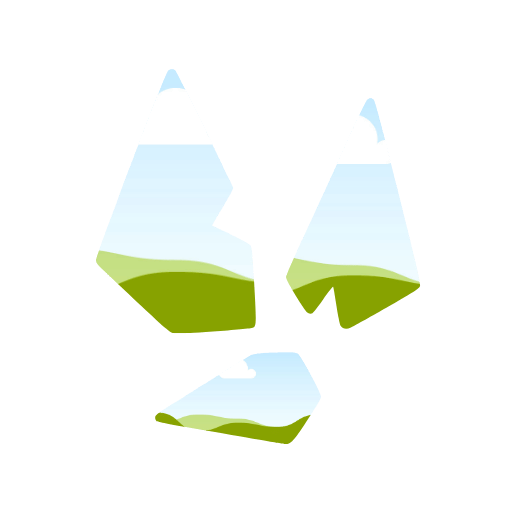

Four prompts, four frames
Puzzle piece frame“jigsaw puzzle piece”
T-shirt frame“t-shirt mockup”
Broken glass frame“broken glass shards”
Pumpkin frame“halloween pumpkin”
How to use it in Canva
Need more detail? Read the full guide on docs.qrdyai.com · How frames work in Canva
- Open AI Frames in Canva and describe the shape you want.
- Press Generate and pick the result you like.
- Add it to your design and drop a photo in.
Prompt tips
Name one object and keep it short: “cat ears”, “christmas ornament”, “vintage camera”. Add “silhouette” or “outline” when you want a simpler shape. Avoid characters and logos.
Edge effects in the app
AI Frames can blur the edge of the photo, add a border stroke and an inside shadow, the same finishing options as Frames Lab.
More frame ideas
Shapes you could describe, from the library.