Circle Crop Image
Crop a picture into a circle without opening an editor. Drop the photo, drag it until the face or the logo sits in the middle, zoom with the scroll wheel or a pinch, and download a transparent PNG. Turn on a border and pick its colour and width if you want a ring around it. Your photo never leaves your device.
Your photo never leaves your device. The whole tool runs in your browser. No upload, no account, no watermark.
Drag the photo to move it, scroll or use the slider to zoom. Hover to see the whole photo behind the shape.
2048 × 2048 px PNG, transparent background, no watermark. File: circle-photo-qrdyframes.png
Try other shapes
Want it as a real Canva frame?
Want more shapes, borders, text, or to use it right inside your Canva design? Open Image to Frame in Canva.
Open Image to Frame in CanvaOpens the app inside Canva. Free to start, nothing to install.
How to use the circle crop tool
Three steps, under a minute, no account.
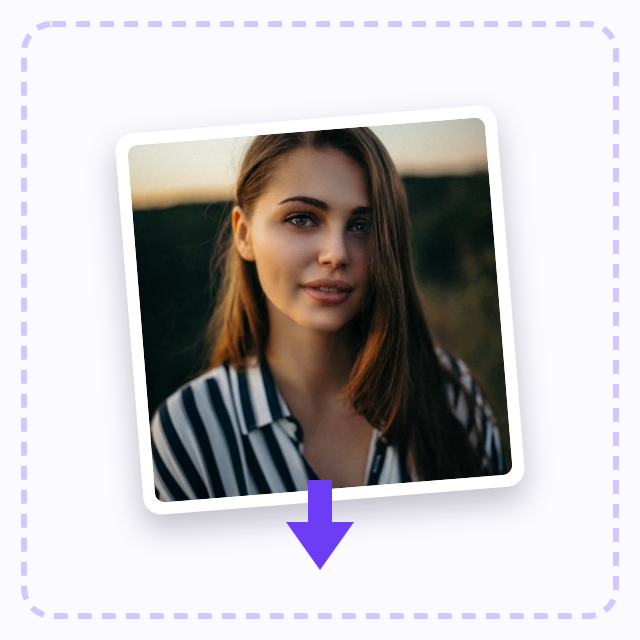
Drop a photo on the upload box or click to choose one. JPG, PNG and WEBP, up to 20 MB.
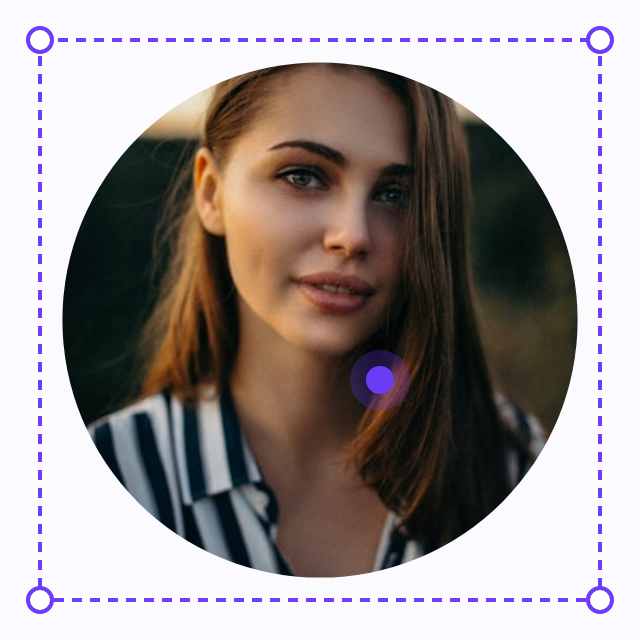
Drag the photo to centre it in the circle; zoom with the slider, the scroll wheel or a pinch. Turn on Border to add a ring, then set its width and colour.
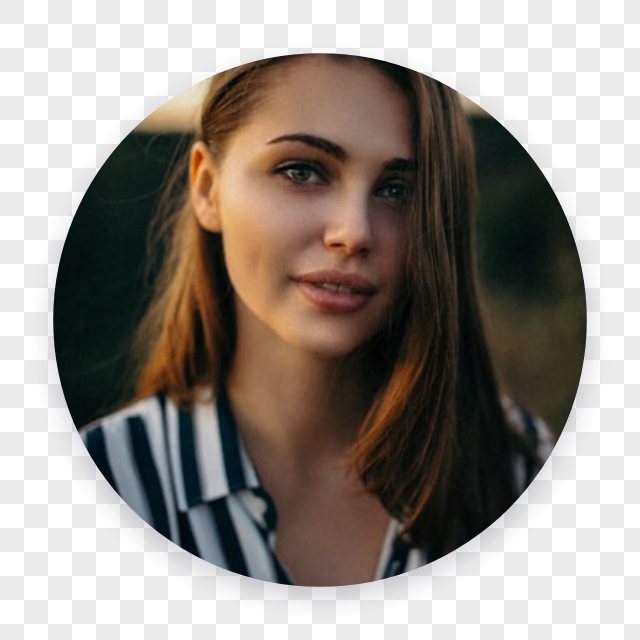
Pick an export size (400, 1080 or 2048 pixels) and click Download PNG. The corners are transparent, so the circle sits on any background.
What people make with it
Choose 400 pixels for a profile picture, 1080 for social posts or 2048 for print. The corners of the PNG are transparent, so the circle sits on any background without a white box around it. The same circle is a Canva frame in Frames Lab and Image to Frame, if you would rather crop inside your design.
Profile pictures
Most apps crop avatars to a circle anyway, but they crop blind. Crop it yourself, see exactly what shows, and upload a 400 px PNG that looks the same everywhere.
Team photos on a website
A row of round portraits with the same border looks tidy. Crop each one here with the same border width and colour, export at 1080 px, and drop them into the page.
Round logos and badges
Turn a square logo into a round one for a favicon, an app store listing or a Slack workspace. A thin white border separates it from dark backgrounds.
Stickers
Round stickers for laptops, jars or packaging start as a circle crop. Export at 2048 px for print and add a thick border as the cut line.
Presentation slides
Speaker photos and customer portraits in circles instead of rectangles. The transparent PNG lands on any slide background.
Questions
How do I crop a picture into a circle?
Drop the photo above, drag it so the part you want is in the middle, zoom in or out, and click Download PNG. The area outside the circle is transparent.
Will the background be transparent?
Yes. The PNG has transparent corners, so the circle sits on any colour or image without a square box around it. JPG cannot hold transparency, which is why the download is a PNG.
How do I add a border?
Switch on Border under the preview, then set the width (0 to 40) and pick a colour. The border follows the circle and is part of the downloaded PNG.
Which size should I pick?
400 px for profile pictures and avatars, 1080 px for Instagram, LinkedIn and other social posts, 2048 px for print or when you want room to crop again later.
Is my photo uploaded?
No. The crop happens on a canvas in your browser. Nothing is sent to a server, and the photo is dropped when you close the page.
Can I do this in Canva?
Yes. Open Image to Frame or Frames Lab in Canva: a circle frame crops any photo you drop into it, and you can change the photo, add a border or a shadow and keep editing inside your design.
Related pages
Where the shapes come from
Every shape here is a frame from the Qrdy Frames library, drawn by Qrdy and free for personal and commercial use. In Canva the same shapes become real frames through Image to Frame and Frames Lab.